From Zero to Self-Hosted Hero: A Real-World Guide to Setting Up Immich
A real-world walkthrough of setting up Immich — the open-source Google Photos alternative — on a home server, including branding customisation and troubleshooting tips.
By Anthony Booth
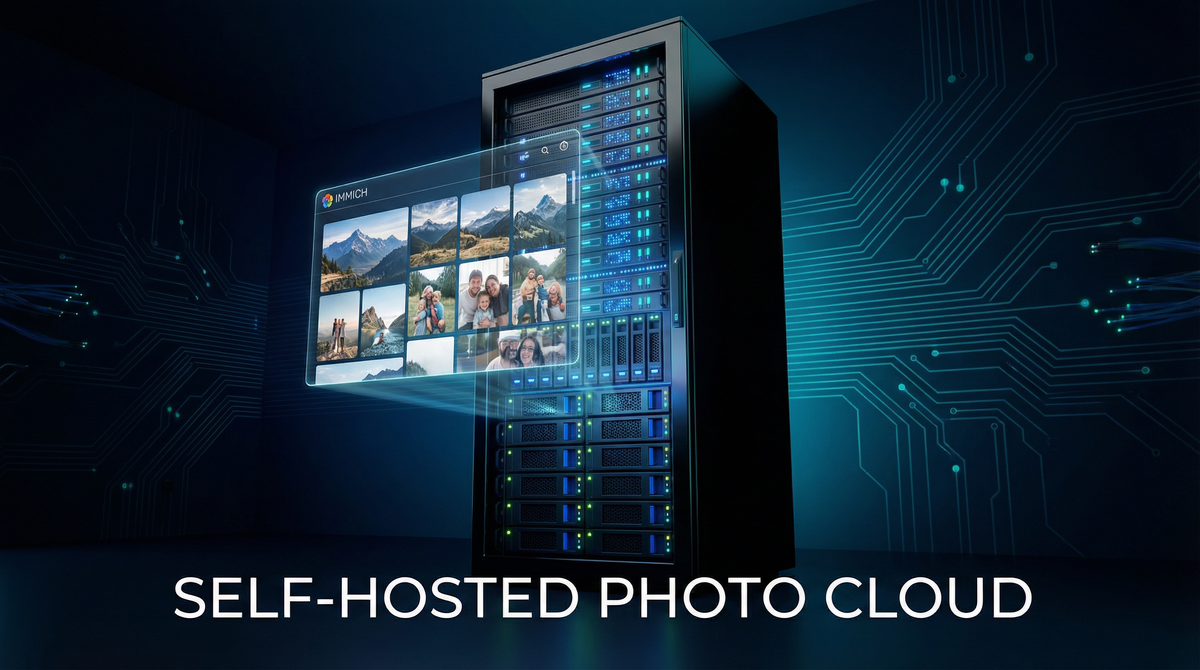
If you've ever looked at your Google Photos bill and thought, "There has to be a better way," you're in the right place. Taking control of your own photo and video library is one of the most rewarding projects you can tackle in a homelab. Today, we're diving deep into setting up Immich, the open-source, self-hosted photo and video backup solution that's rapidly becoming the go-to Google Photos alternative.
This isn't just a copy-paste of the official docs. This is a real-world walkthrough based on my experience setting it up on the Cyborg Server, including the hurdles, the fixes, and the customizations that make it feel truly yours.
What is Immich?
Immich (https://immich.app/) is more than just a folder of pictures. It's a complete, multi-user photo management platform with features you'd expect from a polished commercial service:
- Automatic Mobile Backup: Sync photos and videos from your phone just like Google Photos.
- AI-Powered Search: Find photos based on objects, tags, and even faces.
- Metadata and Location: See where your photos were taken on an interactive map.
- Sharing and Albums: Create shared albums for family and friends.
- Full Control: Your photos, your server, your rules.
The Game Plan: What You'll Need
Before we start, let's get our tools in order. This guide assumes you have a home server (like my Unraid-based "Cyborg" server) with Docker and Docker Compose installed and running. A basic familiarity with the command line will be very helpful.
- A Home Server: Any machine that can run Docker will do. A system with at least 2 CPU cores and 6GB of RAM is recommended.
- Docker & Docker Compose: The foundation of our setup.
- A Reverse Proxy (Optional but Recommended): I use Nginx Proxy Manager (NPM) with a Cloudflare Tunnel to securely expose services to the internet. This lets you access Immich from anywhere using a clean domain name (e.g., photos.yourdomain.com).
Step 1: The Standard Installation
First, we'll follow the official recommended setup. This gets the core services running.
1. Create a Directory and Download the Files
SSH into your server and create a dedicated folder for your Immich configuration.
mkdir /path/to/your/immich-app
cd /path/to/your/immich-app
Now, download the docker-compose.yml and the environment file from the official Immich GitHub releases.
wget -O docker-compose.yml https://github.com/immich-app/immich/releases/latest/download/docker-compose.yml
wget -O .env https://github.com/immich-app/immich/releases/latest/download/example.env
2. Configure Your .env File
This is the most important step. Open the .env file and customise these key values:
- UPLOAD_LOCATION: This is where Immich will store all your photos and videos. Crucially, point this to a directory on a drive with plenty of space. For my Unraid server, this points to a share on the array.
- DB_PASSWORD: Change this to a strong, random password for the internal database connection.
- TZ: Uncomment this line and set it to your timezone (e.g., Europe/London).
3. Start the Containers
With your configuration saved, it's time to bring Immich to life.
docker compose up -dDocker will pull all the necessary images and start the services. This can take a few minutes. Once done, access the Immich web UI at http://YOUR_SERVER_IP:2283. The first user to register becomes the admin.
Step 2: Making It Your Own (The Fun Part)
Running Immich is great, but making it feel like your service is even better. When I first set up my instance, I wanted to rebrand the login page to match my "Cyborg Security" theme.
While Immich doesn't have an official white-labeling feature yet, you can do a lot with its Custom CSS option.
- Log in to Immich with the admin account you created.
- Go to Administration → System Settings → Theme Settings.
- Set a Welcome Message that appears on the login screen. I set mine to "Cyborg Security — Private Photo & Media Vault".
- To replace the "Login" heading text, paste this into the Custom CSS box:
/* Hide the "Login" heading text */
h1.font-immich-title {
    font-size: 0;
}

/* Replace it with your own text */
h1.font-immich-title::before {
    content: "Cyborg Security";
    font-size: 2rem;
    color: white;
    display: block;
}
This simple tweak makes a huge difference in personalizing the experience.
Step 3: Lessons from the Real World
No homelab project is complete without a bit of troubleshooting. My experience setting up this very blog to document these projects revealed a key lesson that applies perfectly to Immich: reverse proxies and email configuration are critical.
When you put Immich behind a reverse proxy like NPM, you must ensure your docker-compose.yml and NPM settings are correct. The url variable in your configuration needs to match the public-facing URL exactly, and you need to configure your proxy to pass the correct headers (X-Forwarded-For, X-Forwarded-Proto, etc.).
Similarly, for features like password resets or user invites, a working email configuration is not optional. Getting Gmail SMTP working correctly — using a proper App Password generated from your Google Account security settings — is essential for a smooth-running instance.
Conclusion: Your Photos, Your Cloud
Setting up Immich is a straightforward process that pays huge dividends in data sovereignty and peace of mind. By following the official guide and adding a few personal touches with Custom CSS, you can create a powerful, private photo cloud that's tailored entirely to you.
This project is just the beginning. Now that Immich is running, the next steps are to explore its features, set up automatic backups from all your devices, and enjoy the freedom of your own self-hosted photo library.
References: Immich Documentation — Quick Start